

Using webReader
ReadSpeaker webReader is an assistive, cloud-based text-to-speech tool that reads digital content aloud to enhance accessibility for students, particularly those with visual impairments or learning differences. Integrated into Brightspace, it supports various devices, browsers, and operating systems, allowing users to listen to text rather than read it. It works in Lessons, Assignments and Quizzes. There is no software to install. The tool appears automatically on supported pages and is hidden on pages where it is not needed.
ReadSpeaker webReader works on most devices and browsers, including:
- PCs, laptops, Chromebooks, tablets, and smartphones
- Operating systems like Windows, macOS, Chrome OS, Android, and iOS
- Browsers such as Chrome, Safari, Edge, Firefox, and Internet Explorer 7+
When webReader is available on a page, a Listen toolbar will appear.

Clicking the Listen button will start reading the page from the top. As the text is read aloud, webReader highlights each sentence and word in different colours to help students follow along.
If students highlight a section of text on a page, only that selected text will be read aloud. Students can click the Listen button from the small pop-up menu or the main Listen button to hear just that section.
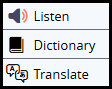
Students can also use the menu icon (three lines) next to the Listen button to access extra features in the webReader player.
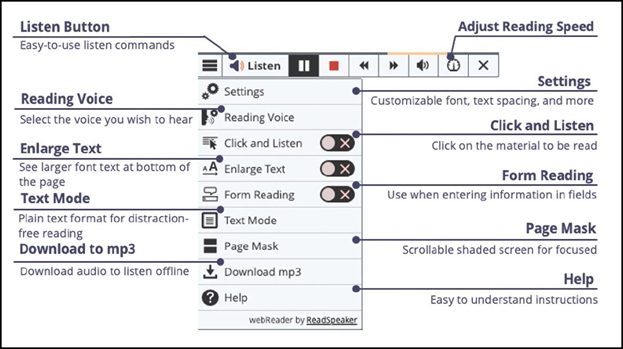
In the player, you can:
- Pause and continue the reading
- Stop the reading
- Restart the reading from the beginning, after using the stop button
- Use the skip buttons to rewind or forward the audio
- Adjust the volume
- Adjust the reading speed
- Close the player
Reading Voice
Choose the voice webReader should use to read the text. There can be voices in different languages and/or different voices for a language. Select the voice you wish to use from the drop-down.
Keyboard Mode
When Keyboard Mode is activated, certain features can be activated by just tapping one key. The features are activated for the currently focused reading area. A purple border shows the reading area and can be changed to sections, paragraphs, sentences, or words.
In Keyboard Mode, the extra shortcuts are:
- Put focus on the player and start, pause, resume, or restart the reading: L
- Put the focus on a larger/smaller text section, i.e. enlarge/shrink reading area (section, paragraph, sentence, word): up/down arrow keys
- Put the focus on the next/previous text section: right/left arrow keys
- Activate the Translate feature to translate the section in focus: T
- Activate the Dictionary feature to look up the (first word of the) section in focus in the dictionary: D
- Show/hide the keyboard navigation help: space
Click and Listen
Click "Click and Listen" to turn this feature on or off. A green tick on the toggle switch indicates that it is on. webReader will then start reading a section or paragraph when you click in it. This lets you listen to content you want to read without having to select it first, then click the Listen button. On mobile devices, the feature works when you tap in the section or paragraph (‘Tap and Listen’).
Enlarge Text
Click "Enlarge Text" to turn this feature on or off. A green tick on the toggle switch indicates that it is on. webReader will then display the sentence being read at the bottom of the page, with a larger font size and simultaneous word highlighting. You can play, pause or stop the reading and make the text larger or smaller.
Text Mode
Click "Text Mode" to open a pop-up window that displays the current page in a text-oriented version. You can choose how the text looks (see above under ‘webReader Pop-up Windows’). Images are also shown if they have text associated with them.
Page Mask
Click "Page Mask" to see the page with a focus bar. The rest of the page is dimmed. The focus bar follows the mouse cursor, or the finger on touch devices, to make it easier to focus on smaller portions of text at a time. Hit the escape key or click the cross on the right edge of the focus bar to turn the page mask off. Click on the + or - to make the focus area larger or smaller.
To enter (or exit) keyboard navigation mode when the page mask is showing, hit the space key. A small keyboard icon will show just above the focus area when keyboard navigation mode is active. When active, the arrow keys can be used to move the focus area (or shift key + arrow key for faster movement). The plus and minus keys will change the size of the focus area.
Download mp3
Click to download an MP3 file with an audio version of the web page or selected text.
Help
The help page provides more information about the tools in ReadSpeaker webReader.