

Help Centre » CDLI Teacher » Canva » Change to CDLI Team in Canva
Change to CDLI Team in Canva
When using Canva in your CDLI courses or other CDLI work, please ensure you have selected the CDLI Team in your Canva account profile.
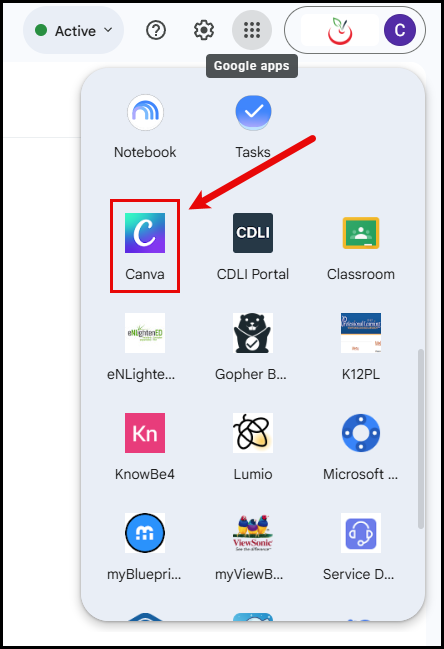
Launch Canva by clicking the NLSchools Google Waffle, then scroll to the bottom of the list. Click on the Canva icon.
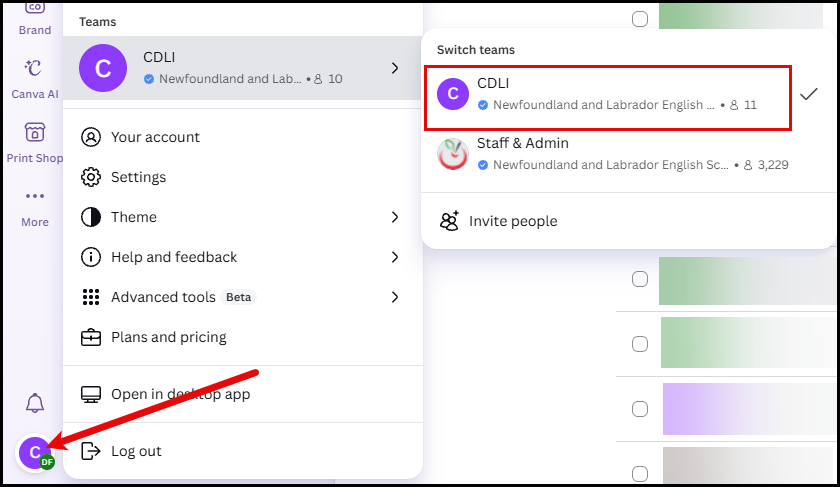
Click your profile icon in the bottom-left corner and then click the arrow icon in the Teams section. You’ll see all the teams you are part of and a check icon beside the team you’re currently on. If necessary, click the CDLI Team.
When you switch teams, you can only see the designs you’ve created in that team. If you can’t find your designs, you might be in the wrong team.