
FAQ: How do I add, drop or transfer a student?
If, after initial registration is closed, you need to make changes to your registrations and/or add/delete students/registrations, you will have to use the Change Requests online tool found when you login to CDLI. This tool allows you to do make a registration request and monitor its progress until it is completed.
To Make a Registration Change Request
Login to your CDLI account and click on the Change Requests link on the right hand side of the page.
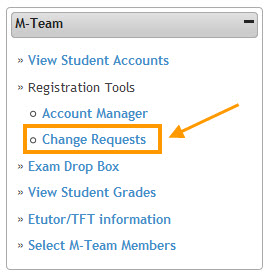
You should see the following:
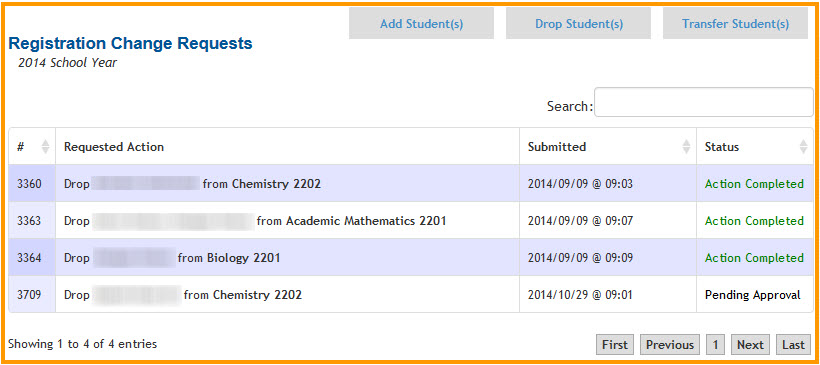
Adding a student to a course
Click the Add Student(s) tab. You should see the following:
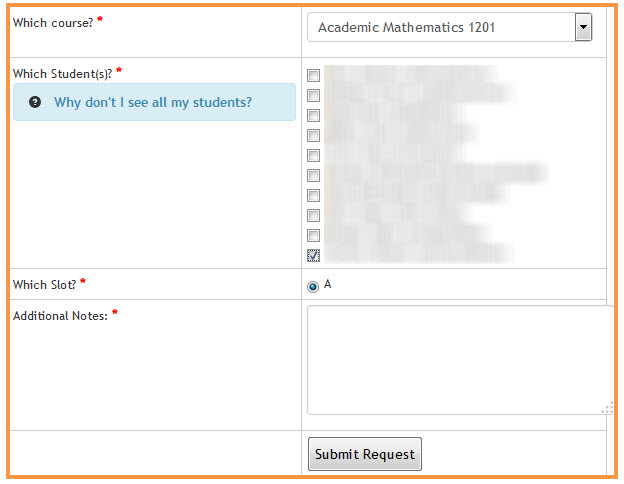
Select the Course, Student, Slot and please include Additional Notes explaining the details of the request.
Dropping a student
Click the Drop Student(s) tab. You should see the following:
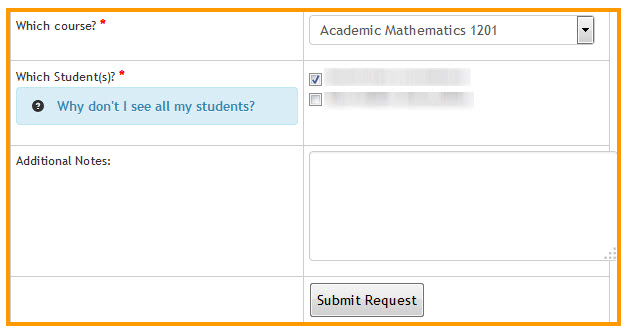
Select the Course, Student and please include Additional Notes explaining the reason for the drop.
Transferring a Student/ Slot Change
Click the Transfer Student(s) tab. You should see the following:
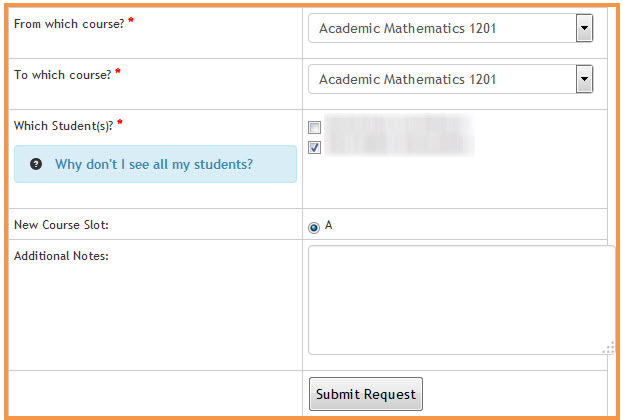
Select the From Course, To Course, Student, Slot and please include Additional Notes explaining the reason for the transfer.